
Free Redis GUI Client for Windows, MacOS and Linux
Published 19 March 2026
Installation
REDIS Explorer is a free, open source, cross platform Redis GUI client written in Python using Tk for the graphical interface. It is part of the tool chest on GitHub.
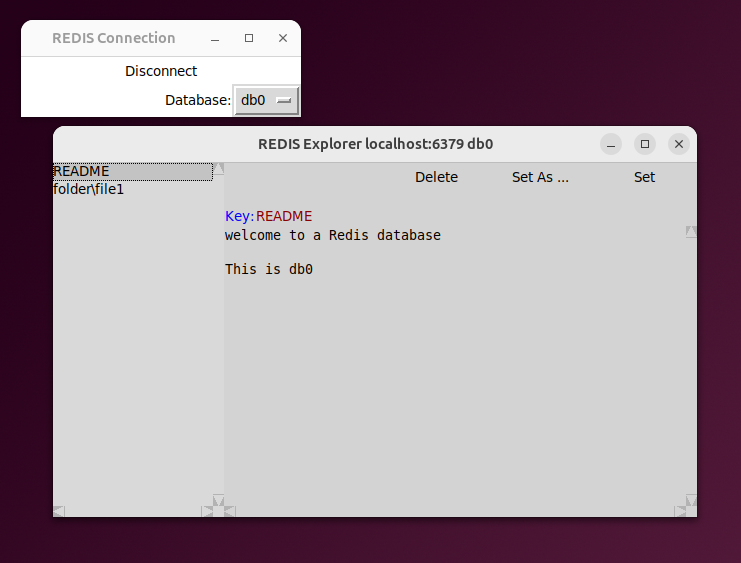
REDIS Explorer works on Windows, MacOS, and Linux (e.g. Ubuntu, Raspbian, CentOS).
Native Installation
The tool requires the following system packages:
python3- Python 3 interpreterpython3-tk- Tk GUI toolkitpython3-venv- Python virtual environmentgit- Git version control
Once system packages are installed clone the repository and install the application dependencies:
git clone https://github.com/adamlatchem/toolchest.git
cd toolchest
pip install -r pipDependencies
python3 redis-explore.py
Container Installation
REDIS Explorer can be run in a container, for example using Podman. This requires access to your X11 socket for GUI display.
Create the following Containerfile.redis-explore:
FROM ubuntu:24.04

RUN apt-get update && \
    apt-get install -y git python3 python3-tk python3-pip python3-venv xauth && \
    rm -rf /var/lib/apt/lists/*

WORKDIR /App

RUN git clone https://github.com/adamlatchem/toolchest.git /App/toolchest

RUN python3 -m venv /opt/venv

ENV PATH="/opt/venv/bin:$PATH"

RUN pip3 install -r /App/toolchest/pipDependencies

WORKDIR /App/toolchest

ENTRYPOINT ["python3", "redis-explore.py"]
Build the Container
podman build --file Containerfile.redis-explore --tag redis-explorer .Configure X11 Access
Before running the container, you must grant Podman access to your X11 socket.
Option 1: Simple Access (Less Secure) Allow local containers to access the X server:
xhost +local:podmanOption 2: X11 Authentication Cookie (More Secure) Create a container with access to your X11 authentication cookie:
XSOCK=/tmp/x11-unix
XAUTH=/tmp/xauth.$$
touch $XAUTH
xauth nolist $XAUTH || xauth source - <<< "$(xauth list | grep -v '^!')"
podman run --rm -it \
  --network host \
  --volume $XSOCK:/tmp/.X11-unix:rw \
  --volume $XAUTH:/tmp/.Xauthority \
  --env DISPLAY \
  --env XAUTHORITY=/tmp/.Xauthority \
  redis-explorer:latest
Run the Container
Basic run command:
podman run --rm -it \
  --network host \
  --volume /tmp/.X11-unix:/tmp/.X11-unix:rw \
  --env DISPLAY \
  redis-explorer:latest
Run with Redis Container
Start a Redis container first, then connect to it:
podman run -d --name redis docker.io/redis:alpine
podman run --rm -it \
  --network host \
  --volume /tmp/.X11-unix:/tmp/.X11-unix:rw \
  --env DISPLAY \
  redis-explorer:latest
Enter redis as the host when prompted.
Features
REDIS Explorer provides an intuitive GUI for managing your Redis databases.
The application connects to your Redis server and provides a visual interface for:
- Connect to any Redis server by host and port
- Browse keys in a sorted list view
- View values stored at each key
- Edit values directly in the text editor
- Rename keys using the Set As feature
- Delete keys with confirmation dialogs
- Switch databases using the database selector
As a desktop application, REDIS Explorer is entirely local to your device. Your database credentials and data are not shared with any online service. This is useful for secure environments and offline work.
How to Use
Once started the connection window will appear. Enter your Redis server details:
Connection Dialog
- Host - The hostname or IP address of your Redis server (default: localhost)
- Port - The port number for Redis (default: 6379)
- Password - Authentication password if required (optional)
- Database - Select the Redis database number (0-15 typically)
Click Connect to establish the connection. The interface will update to show the Redis Explorer browser window.
Click Disconnect to close the connection and return to the connection dialog.
Key Browser
The key browser shows a sorted list of all keys in the selected database. Click on any key to view its value in the object viewer pane.
The key list updates automatically when you:
- Edit and save a value
- Rename a key
- Delete a key
- Switch to a different database
Object Viewer
The object viewer pane shows the value stored at the currently selected key. It provides the following controls:
- Set - Save changes to the current key
- Set As ... - Rename the key and save the value
- Delete - Remove the key from the database
Confirmation Workflows
The application uses confirmation dialogs for destructive operations:
- Delete prompts for confirmation before removing a key
- Set As allows you to rename a key before saving
Design
REDIS Explorer uses a compact design following the MVVM design pattern. The project builds on a shared GUIApplication base class that provides common GUI functionality.
The architecture consists of two main classes:
- RedisConnect - Handles server connection and database selection
- RedisExplorer - Provides the key browser and object viewer interface
Both classes inherit from GUIApplication which handles:
- Tkinter window management
- Styling and theming
- Error dialogs
- Grid layout utilities
The use of Python with the Tk GUI toolkit ensures the application is cross-platform with no extra dependencies. The project is Open Source allowing users to extend the functionality or adapt it for their needs.
Use Cases
REDIS Explorer is useful for:
- Development - Inspect and modify Redis data during development
- Debugging - View session data, cache contents, and queues
- Administration - Quick database inspection without CLI commands
- Education - Learn how Redis stores and retrieves data
Tk
Redis


